
How to use EUNIS Database Combined Search
The combined search tool provides highly tailored results from the EUNIS database, using user-built queries. this tool is quite similar with advanced search tool. The main difference is that this tool can be used to get information about linked Species, Habitats and Sites. For example, with this tool, you can search for Species which lives in certain Habitats and also liked to some Sites.
Because this tool likes together the Species, Habitats and Sites modules, instead of one search panel, as in advanced search, there are three panels where users can enter their criteria, one panel for each nature object type. The last panel contains also the navigation button to the results page(s).
For every of the three panels, it applies the conditions and functionality mention for advanced search tool. If you never used combined search before, we recommend that you get familiar with the advanced search tools first.
Advanced search limitations
- A number of maximum 9 branches can be used at every level of grouping.
- A number of maximum 3 levels can be used.
- For each criteria a number of maximum 5000 search results are retrieved from the database. If this is
the case, users should refine the criteria.
- Only one search at a time can be performed.
Note: Enter the % character to search for all values!
Warning: Due to the heavy nature of this kind of search, the duration of computations can be quite
long. Please wait until the search is finished to start another one.
What are the necessary steps to build the user query
The advanced search process consists of three different logical steps:
- Select the type of nature object you search for: Species, Habitats or Sites.
- Create your criteria for nature object you search for. Details on this step are provided below.
- Create your criteria for the second nature object type. This is the same as above.
- Create your criteria for the third nature object type. This is the same as above.
- Execute the search. For this step, you must press the Search button and wait until the process is finished.
- View, download the results. For this step, press the Proceed to results button.
How to build the combined search criteria
- To add a new branch to the tree, press the C button.
- To add a new criteria to the tree branch, press the + button.
- To delete a branch or a criteria, press the - button.
Below is an image from the first panel of a combined search example on Species:
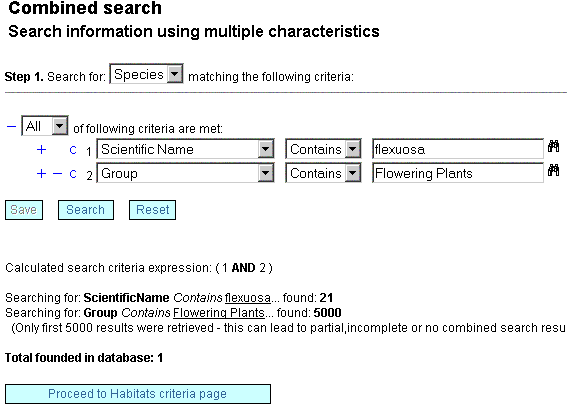
The user search for Species which belong to Group "Flowering Plants" and their name contains "flexuosa". Because the operator used is "All" only the species satisfying both criteria were retrieved. A number of 1 results was found. Note: because the criteria Group = "Flowering Plants" returns more than 5000 results, only the first 5000 results were retrieved for this criteria.
After the search is completed, the user can proceed to the next panel/page, where the criteria on Habitats are required. The final panel is the one where criteria on Sites must be entered. In the final panel all the previous results are combined and the user can proceed to view the final search results.
Advanced search functions
- For every criteria there is available a list of values. This can be accessed by clicking on the
binocular image next to the value used by criteria.
- Before you execute a search, you must first save your criteria. The application to do this
automatically for you, whenever the current control in the windows loses the focus. Due to the complexity of
this function, the criteria and the combination operators must be saved in the database and the advanced
search page must be synchronized with the database.
Regular expressions
Combined search provides support for regular expressions. Some characteristics of extended regular expressions are:
‘.’ matches any single character.
A character class ‘[...]’ matches any character within the brackets. For example, ‘[abc]’ matches ‘a’, ‘b’, or ‘c’. To name a range of characters, use a dash. ‘[a-z]’ matches any letter, whereas ‘[0-9]’ matches any digit.
‘*’ matches zero or more instances of the thing preceding it. For example, ‘x*’ matches any number of ‘x’ characters, ‘[0-9]*’ matches any number of digits, and ‘.*’ matches any number of anything.
A REGEXP pattern match succeeds if the pattern matches anywhere in the value being tested. (This differs from a LIKE pattern match, which succeeds only if the pattern matches the entire value.)
To anchor a pattern so that it must match the beginning or end of the value being tested, use ‘^’ at the beginning or ‘$’ at the end of the pattern.

